Live TV, a grid TV guide and Catch Up on Roku: inside SMARTERS PREMIUM
A tour of live TV in SMARTERS PREMIUM - ROKU: live preview, full screen without reconnecting, the info bar, the channel list over the video, the grid TV guide and Catch Up.
Live TV is where customers spend most of their time, so it is where a channel earns or loses their trust. In SMARTERS PREMIUM - ROKU we focused on three things: seeing what is on before committing, switching channels without leaving the player, and never leaving the customer stuck on a black screen without an explanation.
Categories, channels and a live preview
The Live TV screen has three columns: your categories, the channels of the selected category with their logos, and a live preview of the channel in focus. Under the preview the customer sees the current program with a progress bar and what comes next.
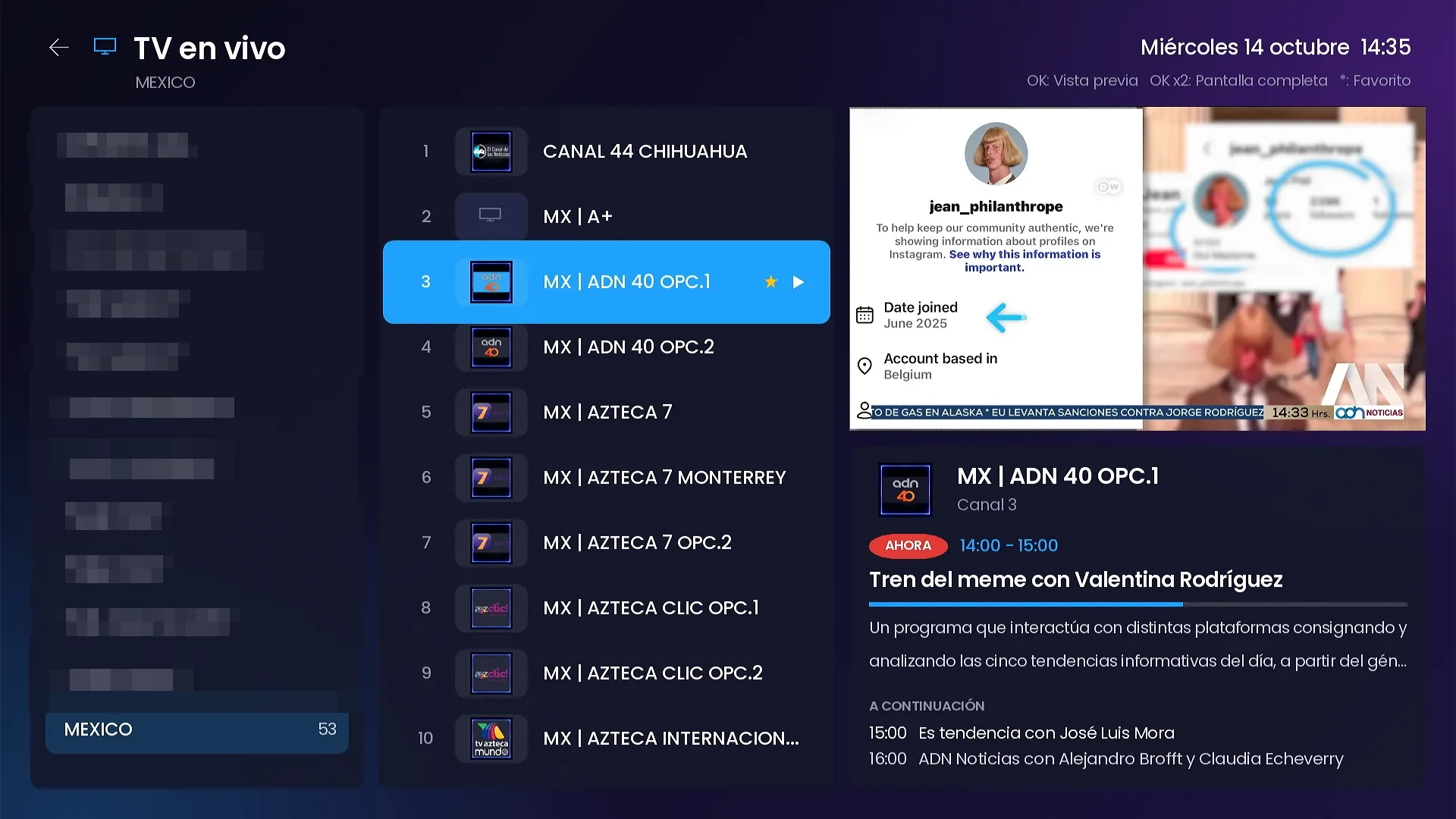
Pressing OK twice goes to full screen. The channel does not reconnect when it goes full screen, and it does not reconnect when the customer comes back to the list either: the same stream keeps playing in the mini player.
The info bar and its buttons
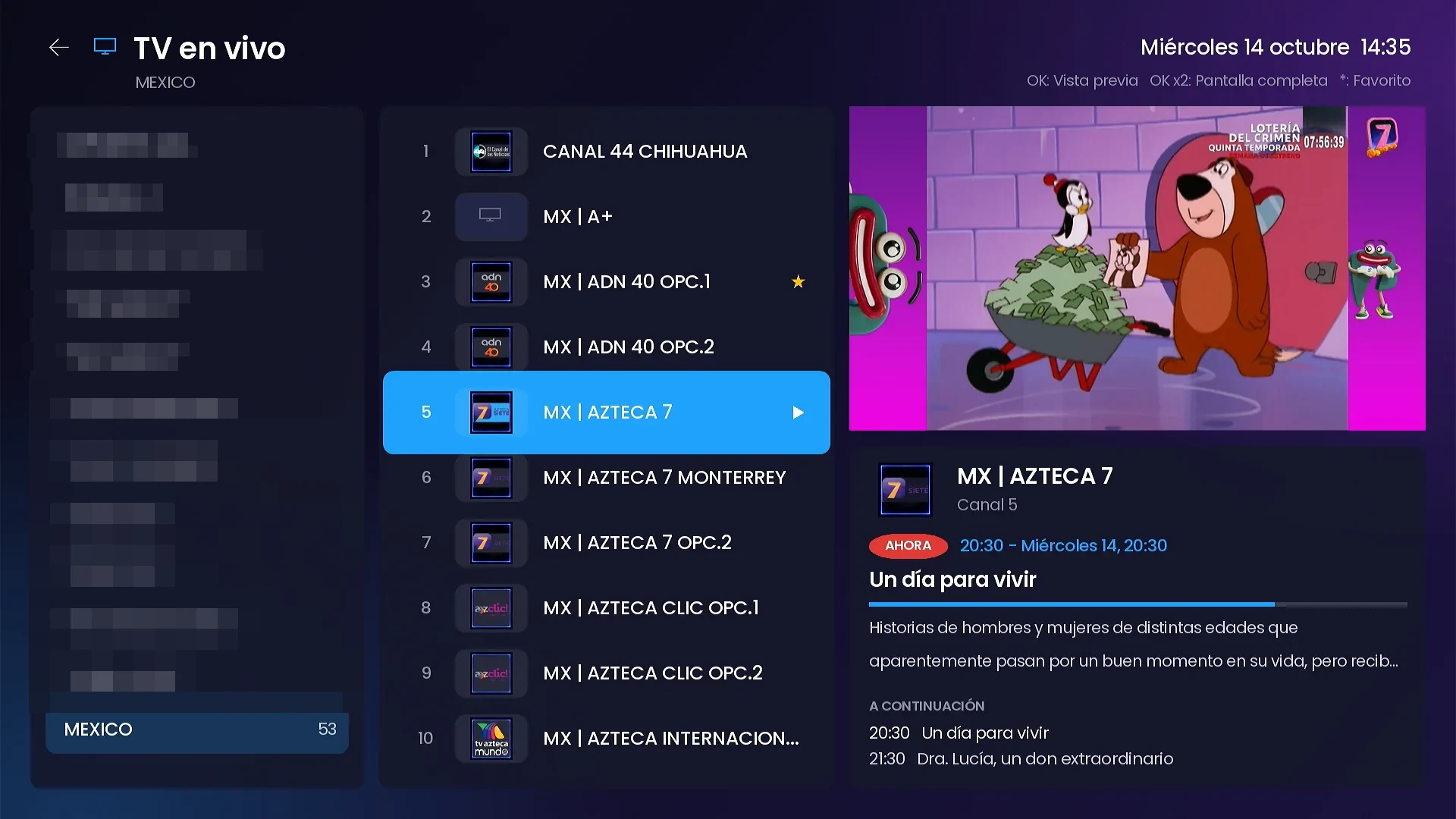
In full screen, the info bar shows the channel, the current program, the time and the next program. It also has buttons for the channel list, favorite, audio, subtitles and more options, where the customer can see stream information such as video, audio, bitrate and measured speed.
Changing channels without leaving the player
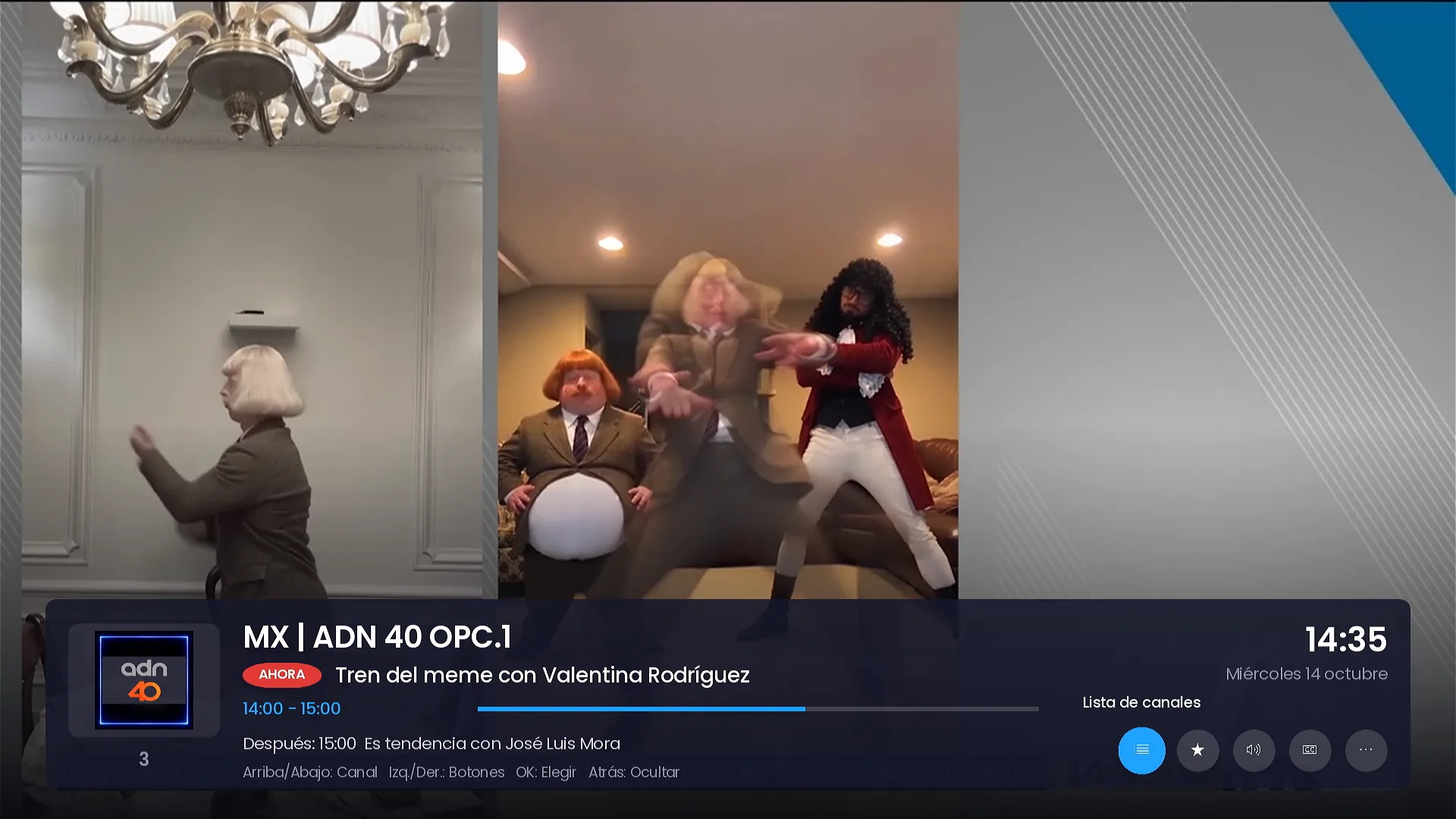
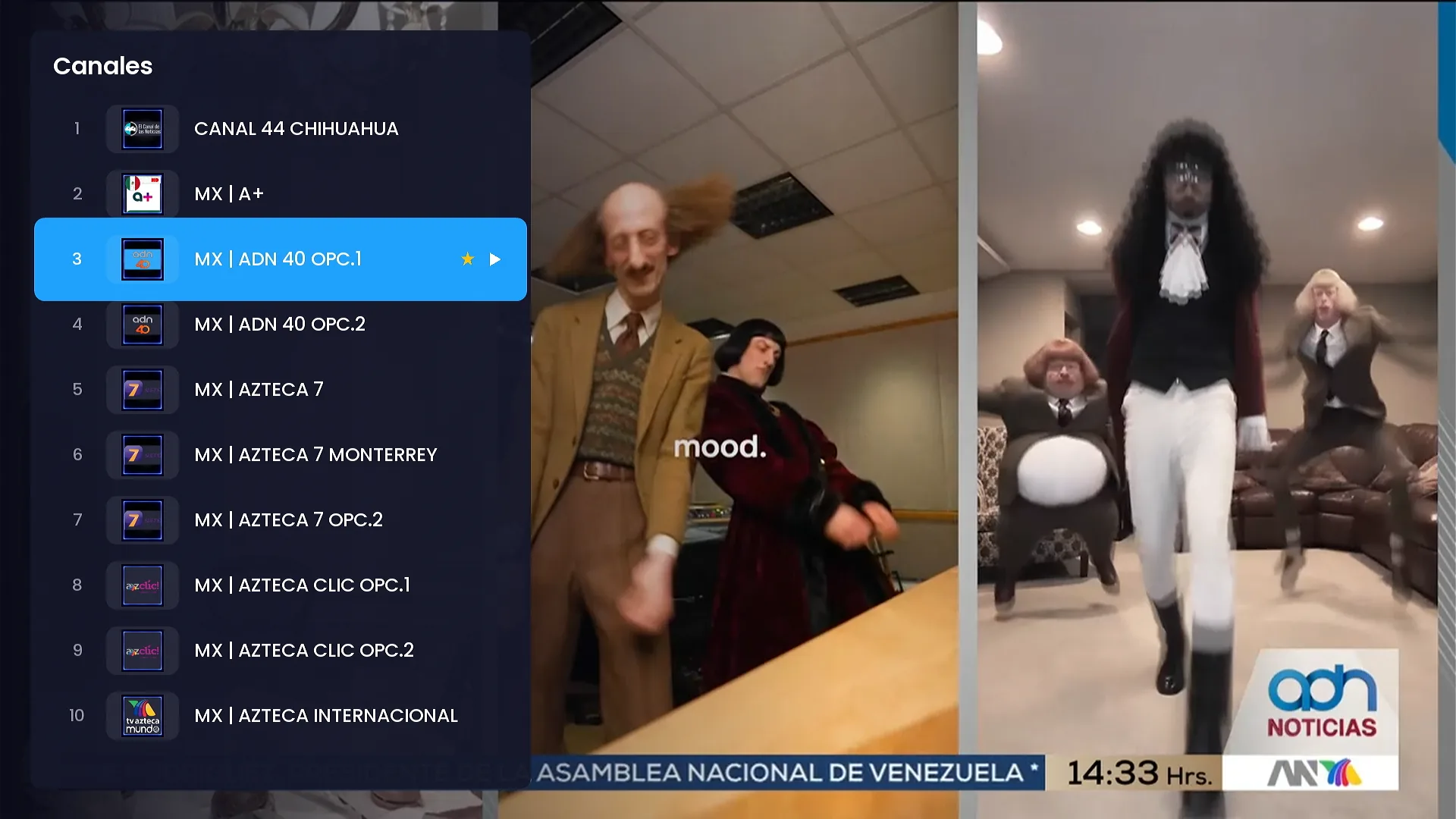
The channel list opens over the video. The customer moves up and down, picks a channel and keeps watching. Up and down also change channels directly in full screen.
Clear messages instead of frozen screens
If a channel sends no video, the channel says so in plain words and lets the customer retry or move to another channel with up and down. If the server refuses the connection, the message explains that the subscription may not include it or the connection limit was reached. The remote never freezes.
The channel also detects lines that only deliver TS streams and picks the right format by itself, and the customer can choose the live TV format in Settings.
A grid TV guide with a live preview
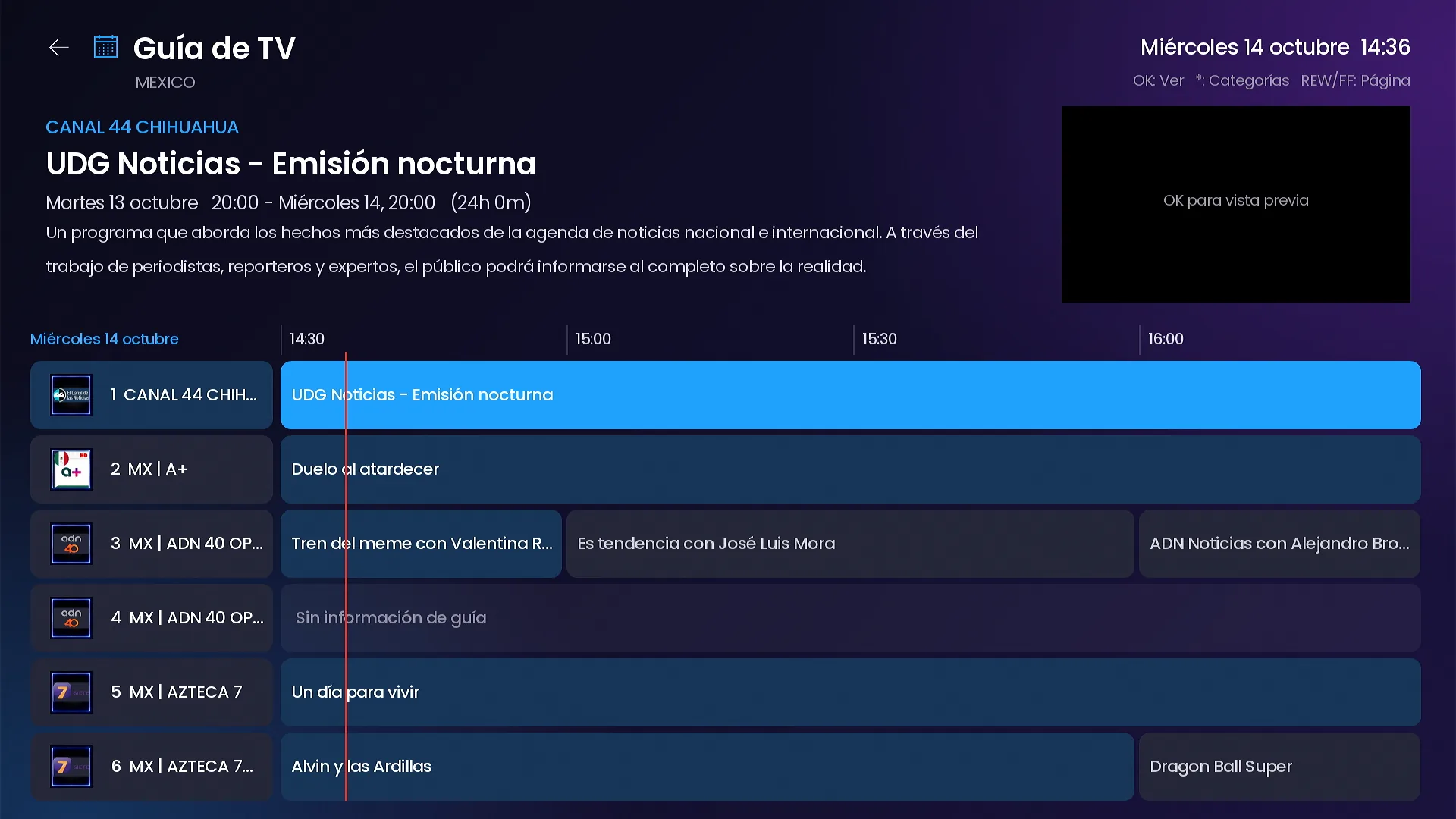
The TV Guide shows programs by time slot with a line marking the current time. The program in focus shows its title, schedule and description at the top, and the channel plays live in the corner. Categories switch instantly inside the guide.
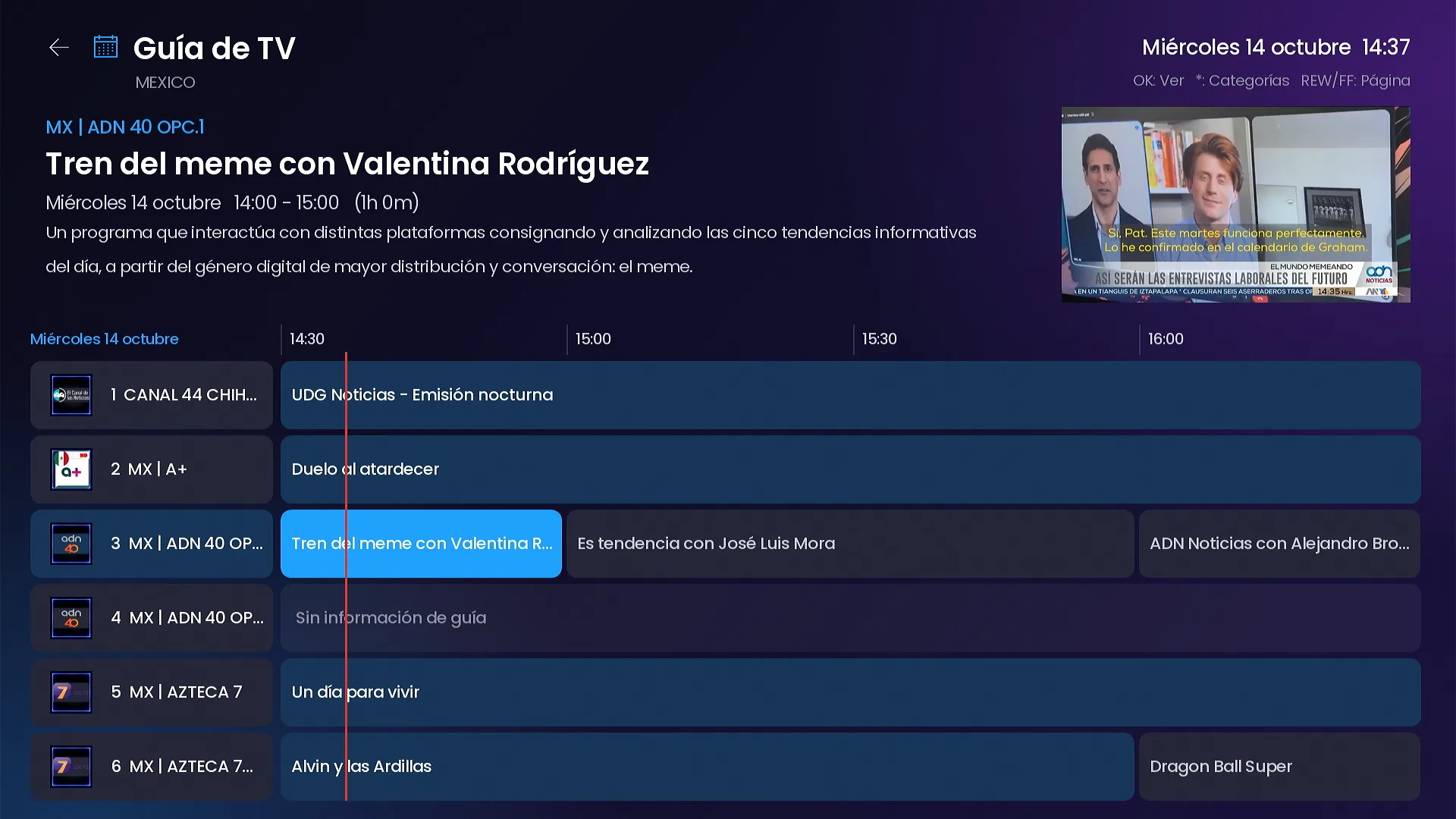
If programs appear too early or too late because of time zones, the customer can shift the guide in Settings.
Catch Up by day
When your server keeps an archive for a channel, Catch Up lists its past programs by day: today, yesterday and the days before. Only channels with an archive are shown, and if an account has no archive the Catch Up tile says so on the home screen instead of opening an empty page.
Live data on the home screen
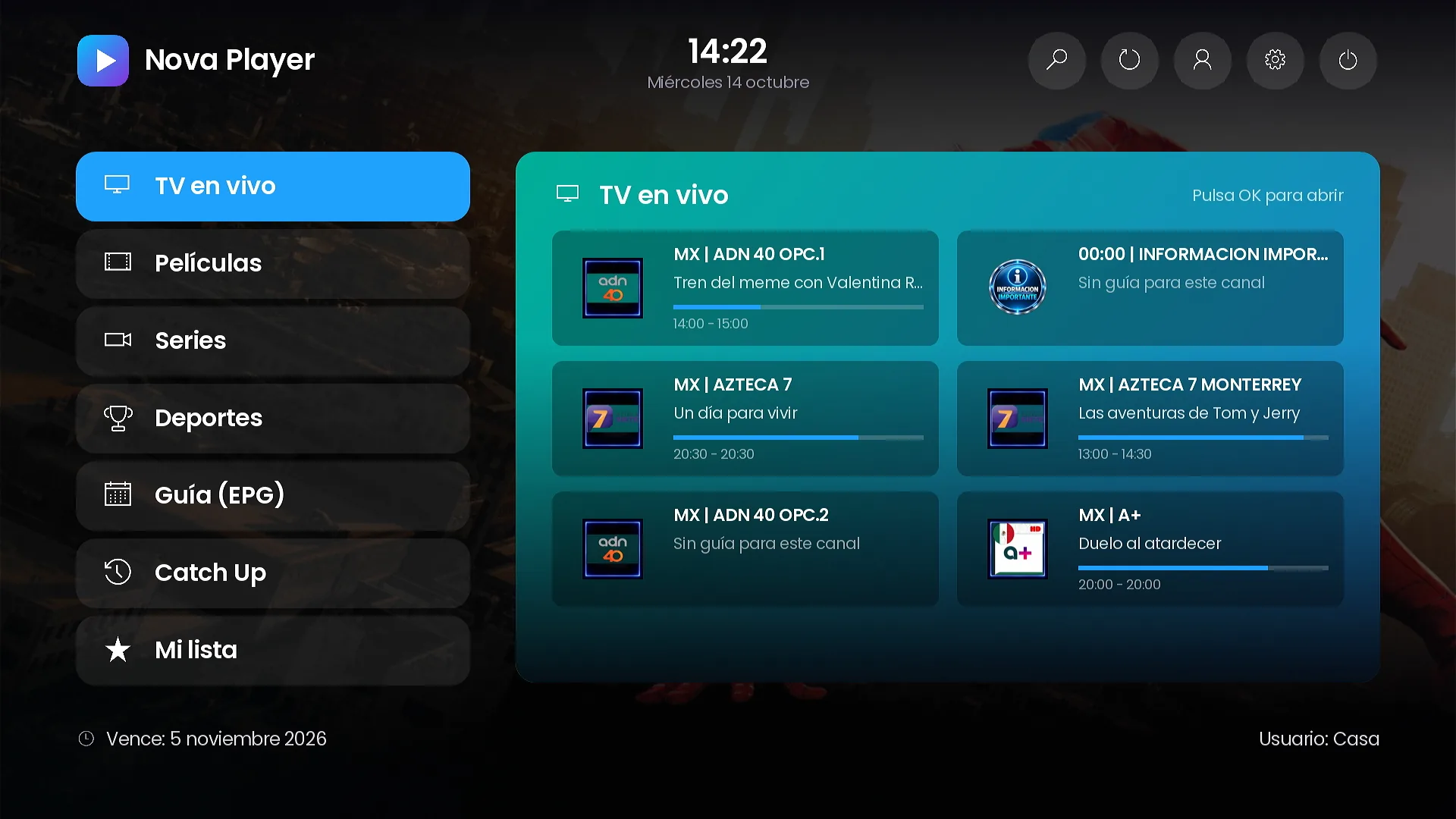
The Side menu home layout can preview live channels with what is on now, or the guide, right on the home screen. It is one of the nine layouts covered in our layouts guide.
Player settings for live TV
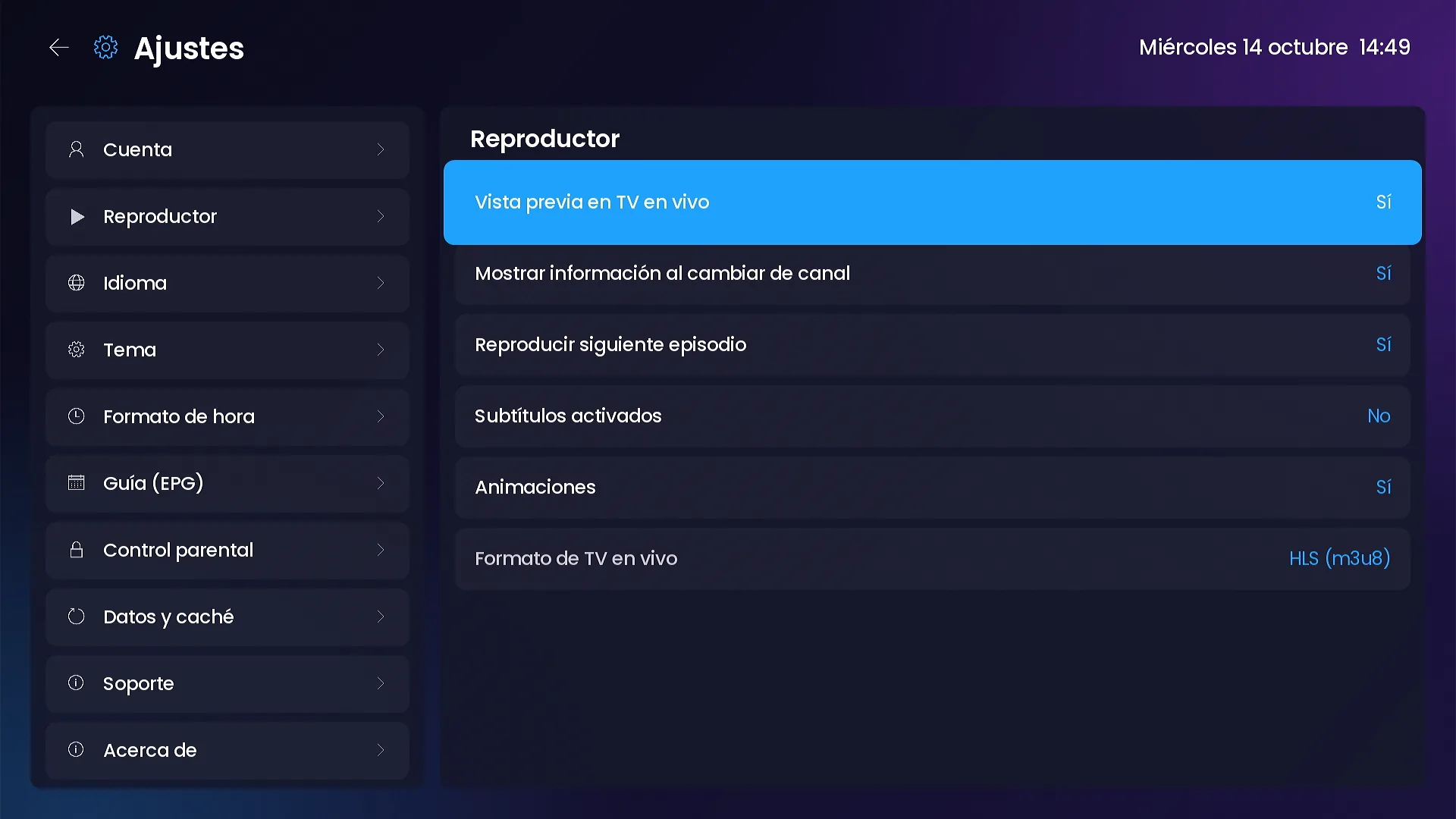
Customers can turn the live preview on or off, show the info bar when they change channels, and choose the live TV format.
Frequently asked questions
Does Catch Up work on every channel?
Only on channels your server keeps an archive for. The channel shows only those, and says so when an account has no archive.
What if the guide times look wrong?
Use the guide time shift in Settings to move the programs earlier or later.
Can the live preview be turned off?
Yes. Settings › Player has a switch for the live TV preview.
Related guides
SMARTERS PREMIUM - ROKU (Xtream & Stalker Portal) is available at a $200 launch price (regular $350), a one-time payment with no monthly app fees. It is published on Roku with your brand and comes with your own admin panel. See every video and screenshot on the full page or view it in the catalog.